
 |
Edit screens and reports from the live application |
|

click to enlarge
|
|
While the application is running, you can edit screens or reports as you would a Microsoft Office Documents:
- Open the window you wish to modify,
- Click on a specific icon,
- An application called "Designer" opens, to let you modify the Window with graphical tools (screenshot).
- Save and close Designer: all changes are effective immediately.
It’s that simple!
No access to source code. No technical skills required. |
|
 |
Hide / Show |
You can hide / show items in screens and reports:
Fields, texts, images, Buttons, etc... |
 |
|
 |
Add / Edit Texts |
Add new text to improve user guidance. |
click to enlarge |
| Modify existing text (titles, Column Labels, GroupBox Name, etc.) |
| You can also change the text attributes: font, text color, background color, text size, bold, italic, justification, border type, etc. |
Multiple selection available to apply the same changes to several texts
You can also duplicate the format of a text to other texts |
|
 |
Add / Edit Pictures |
| Add Pictures to Screens and reports (Logo, images…). |

click to enlarge |
Move or resize pictures with the mouse (Freehand). |
| Reset Pictures to their Original size |
| Change the Border type of a picture |
Edit picture Path and filename. |
| Make it absolute or relative to the application |
|
 |
Add / Edit Fields (DW Columns) |
| Add new fields in screens or reports: simply select a field in a list* and define its position and size with the mouse (Freehand). |

click to enlarge |
| Depending on the skills of the people customizing the application, you may give them the permission to modify Field attributes (Initial Value, List of values available, Validation rule, Validation message…). |
| If you rearrange a screen, you can also modify the tab Sequence (order of the fields when users navigate with the [Tab] Key). |
(*) Currently, you can add 2 types of fields: |
1 – Fields that are in the DW buffer, but not displayed in the DW.
2 – Fields that are not in the DW buffer, but belong to a table listed in the “From” Clause of the DW SQL. |
|
 |
Add / Edit Cosmetic Items |
| Add groupbox and shapes (line, oval, rectangle…) to screens or reports. |

click to enlarge
|
| Define their position and size with the mouse to arrange the layout as needed. |
|
 |
Customize Layouts |
| Select any items in a window or a report and move them as you like |

click to enlarge |
| Resize items to rearrange the layout as needed |
Align or adjust items to the same size items |
Move or resize controls in a DataWindow with the mouse (freehand) |
| |
 |
Filter and Sort Data |
| Filter DataWindows in screens or reports, in order to display only the data you are interested in |
 |
| Change the sorting order of a list. Sorting on multiple columns supported |
| Both filtering and sorting is done on the live
application |
|
 |
Prepare application for Customization – Guide Users |
Before deploying the application with Customization Studio,
the developer can “prepare” to make customization even safer and easier:
- Restrict which items can be customized
- Restrict which types of changes are available for each object
- Define Business Names for items such as DB column names.
- Define Initial Field values (constants)
- Define Default Field values (expressions)
- Define Hint (the application Framework will display it in status bar/microhelp, tooltip....)
|
| |
|
 |
Review Customization |
Review the modifications made in the entire application (see a preview).
Sort modifications by type or by Windows
Update or undo each modification if needed. |
| |
|
 |
Undo Customization |
| At
any time, you can undo all changes at windows level or application
level ("panic button") |
| You
can also undo each modification when reviewing the modifications (see
the previous section) |
| |
|
 |
Apply Customization |
Apply changes dynamically (without changing the source code):
In this case, changes are loaded when the application starts. |
Apply changes permanently:
In this case, the source code is automatically updated to reflect the changes defined with Customization Studio. |
| |
|
 |
Store Customization outside the application |
Customization Studio stores:
Information about the application’s components, including the business names and codes for tables, fields and objects
The rules to block changes to fields, tables and objects, as well as any disabled features
The changes applied at runtime (new values of properties of control) |
| |
|
 |
Advanced Features |
Customization templates
Depending on the profile and skill of the customizer, you can activate or deactivate some
Customization Studio features. Then, you can save this selection of features as a "Template". Finally,
you can decide who will get to use which Template. |
|
|
| |
Property Change
When the application is running, you can select any visual component
and change any of its properties. This feature allows a vast range
of modifications in the controls and datawindows of the application. |
| |
|
| |
Companion Products |
Customization Studio integrates with other PowerBuilder companion products
to extend the features of your applications |
Appeon (Deployment of the PowerBuilder
application on the Web):
Developers convert and deploy the PowerBuilder application as a web application.
Customizers define the customizations directly on the web application.
End-users can access the customized application with an Internet Browser.
More details : http://appeon.novalys.net/ |
|
|
| |
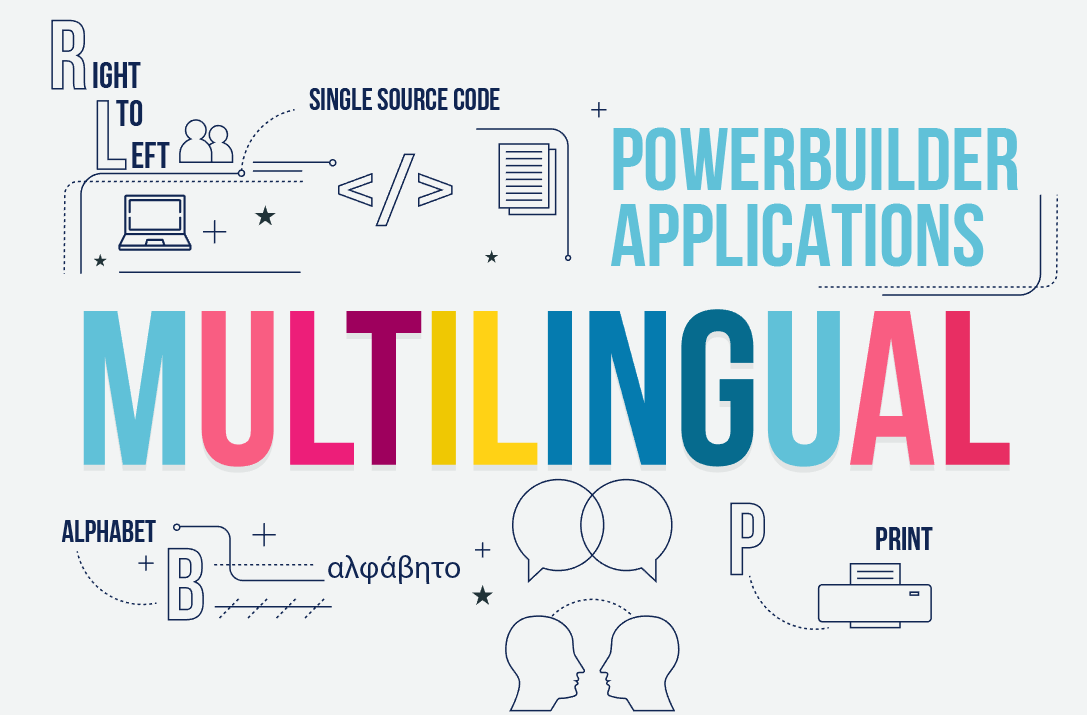
Enable (Multilingual features):
Developers provide default languages and translations with the application.
Customization Managers can edit these translations or create
new languages.
http://www.enable-pb.com/ |
|
|
| |
Visual Guard (Role Based Access Control):
Developers create default roles and permissions for the application.
Customizers can modify roles and permissions or create
new ones.
http://www.visual-guard.com/ |
| |
|
| |
|